Communication Channel
The Organization Settings tab enables administrators to configure global preferences that apply across all imper.ai users and protected communication channels.
Only Admin-level users can modify these settings.
Accessing Organization Settings
Log in to the imper.ai console.
Navigate to Settings > Organization Settings
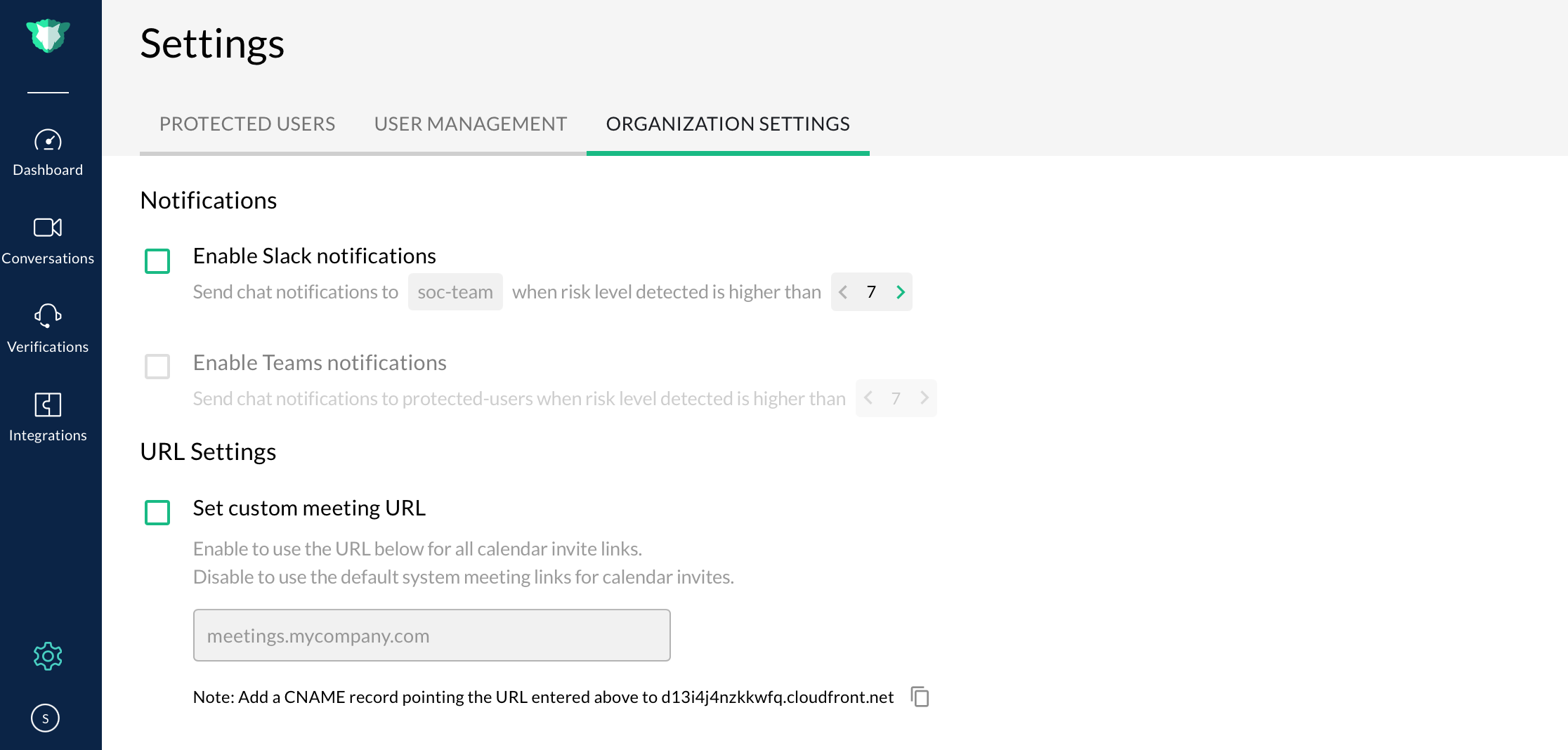
Notifications
The Notifications section allows administrators to configure how imper.ai sends real-time alerts about impersonation attempts and communication risks.
You can control the following:
1. Enable or disable Slack notifications
Turn Enable Slack Notifications ON or OFF.
2. Configure the Slack destination channel
Enter the Slack channel where alerts should be sent
—for example, #security-alerts or #soc-alerts.
3. Set the minimum alert risk level
Define the lowest risk score that will trigger a Slack notification.
This ensures your security or IT teams only receive alerts that match your organization’s sensitivity threshold.
Keep notifications enabled in a dedicated Slack channel to ensure immediate visibility for your security and IT teams.
URL Settings
The URL Settings section lets you define a custom meeting URL for all calendar invite links generated by imper.ai.
1. Enable custom meeting URLs
Toggle Set custom meeting URL ON to use your organization’s branded meeting domain.
When enabled: All generated calendar invite links use the custom domain.
When disabled: imper.ai uses the default system-generated meeting links.
2. Enter your preferred domain
Examples: meetings.companyname.com
3. Configure DNS
Add a CNAME record pointing the domain to the target address displayed in the UI. Example: d13i4j4nzkkwfq.cloudfront.net
4. Save or Reset
Click Save Changes to apply the configuration.
Click Reset to undo unsaved changes.
Use your organization’s verified domain to maintain consistent, trusted meeting links for all imper.ai calendar invites.